In short
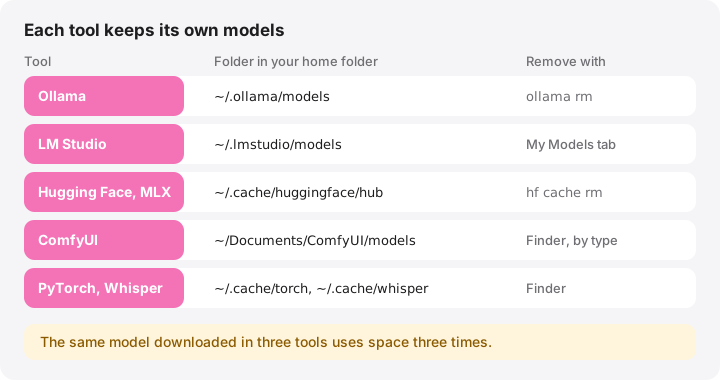
- Ollama stores models in ~/.ollama/models, LM Studio in ~/.lmstudio/models and Hugging Face tools in ~/.cache/huggingface/hub.
- Each tool keeps its own copy, so the same model downloaded in three apps takes three times the space.
- Remove models with each tool’s own command, such as ollama rm or hf cache rm, because files inside the caches are shared between models.
- Models are typically 2–70 GB each and can be downloaded again, but your own fine-tunes and generated images cannot.
- To keep models on an external SSD, use the official settings: Ollama’s model location, LM Studio’s models directory or HF_HOME.
How to remove local AI models on a Mac
- List Ollama models. Run ollama list in Terminal to see each model with its size.
- Remove the Ollama models you no longer use. Run ollama rm followed by the model name, for example ollama rm llama3.2. Layers still used by other models are kept.
- Remove LM Studio models. Open LM Studio, go to My Models and delete the models you no longer need.
- Inspect the Hugging Face cache. Run hf cache ls to list cached models and datasets with their size and when they were last used.
- Delete Hugging Face models and clean up. Run hf cache rm with the model ID, for example hf cache rm model/openai/whisper-large-v3, then hf cache prune to remove detached revisions and partial downloads.
- Look for stray model files. Search your home folder for large .gguf, .safetensors and .ckpt files that sit outside the tools’ own folders.
Local AI tools keep their model weights in hidden folders in your home folder: Ollama in ~/.ollama/models, LM Studio in ~/.lmstudio/models and Hugging Face tools in ~/.cache/huggingface/hub. Each tool keeps its own copy, and a single model is typically anywhere from 2 GB to 70 GB. Remove models through each tool’s own command or app, not by deleting files inside the caches, because those files are shared between models.
Where each tool keeps its models
| Tool | Default location | How to remove |
|---|---|---|
| Ollama | ~/.ollama/models |
ollama rm <model> |
| LM Studio | ~/.lmstudio/models |
My Models in the app |
| Hugging Face (transformers, diffusers, MLX) | ~/.cache/huggingface/hub |
hf cache rm |
| ComfyUI Desktop | ~/Documents/ComfyUI/models |
Finder, by model type |
| Draw Things | ~/Library/Containers/com.liuliu.draw-things/Data/Documents/Models |
In the app |
| PyTorch Hub | ~/.cache/torch |
Finder |
| OpenAI Whisper | ~/.cache/whisper |
Finder |
Older LM Studio versions used ~/.cache/lm-studio/models, and a manual ComfyUI install keeps its models in the models folder of wherever you installed it, often ~/ComfyUI/models.
Ollama
Ollama’s FAQ gives ~/.ollama/models as the macOS default. Inside, blobs holds the actual data and manifests records which blobs make up each model. Several models built on the same base can share blobs, so deleting files by hand can break other models. Use the CLI instead:
ollama list
ollama rm llama3.2
ollama list (also ollama ls) shows every model with its size. ollama rm removes the model and any blobs no other model needs. It is permanent; ollama pull downloads the model again. If a model is loaded in memory, ollama ps shows it and ollama stop <model> unloads it, but neither frees disk space.
LM Studio
Current LM Studio versions keep models in ~/.lmstudio/models, organised as publisher, then model, then the .gguf or MLX files. Open the My Models tab to see each model with its size and delete the ones you no longer use. The same tab shows, and lets you change, the models directory.
In Terminal, lms ls lists downloaded models. If you prefer Finder, quit LM Studio first, then move a model’s folder to the Trash; LM Studio no longer lists it.
The Hugging Face cache
Python libraries such as transformers and diffusers, MLX tools that download from the mlx-community organisation, and many Mac apps built on them all download through huggingface_hub into one shared cache. Its location is ~/.cache/huggingface/hub unless you set HF_HOME or HF_HUB_CACHE.
As of October 2026 the official CLI is hf, which replaced the older huggingface-cli. The cache management guide documents three commands:
hf cache ls
hf cache rm model/openai/whisper-large-v3 --dry-run
hf cache rm model/openai/whisper-large-v3
hf cache prune
hf cache lslists each cached repository with its size, last access and references. Filters such as--filter "accessed>30d"or--filter "size>1GB"narrow the list.hf cache rmdeletes whole repositories, specific revisions or, with anhf://path, a single file such as one GGUF quantisation.--dry-runshows what would go first. Deletion is permanent.hf cache pruneremoves revisions no branch or tag points to, leftover.incompletepartial downloads and shared files nothing uses any more.
If your installation only has huggingface-cli, its older scan-cache and delete-cache commands do the same job; upgrading huggingface_hub gives you hf.
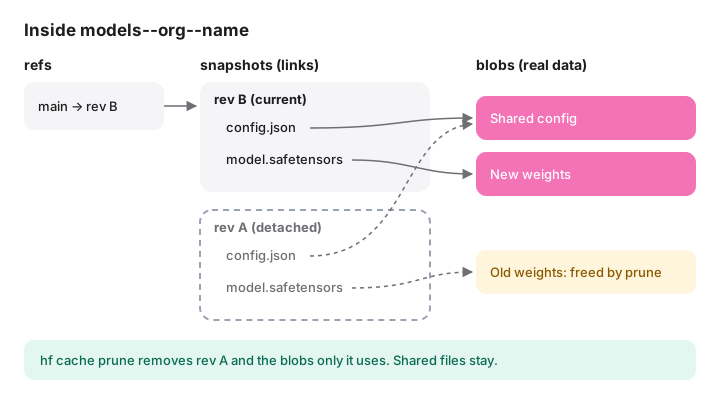
Why not just delete a models--… folder? Inside each one, snapshots contains symbolic links that point to the real files in blobs. Recent huggingface_hub versions can also keep files downloaded through Xet in a shared blobs folder at the top of the cache, used by several repositories at once. Deleting a model folder by hand can then free less than expected; hf cache prune afterwards removes shared files that no model uses.
Two neighbours of the hub cache also grow: ~/.cache/huggingface/datasets holds datasets processed by the datasets library, and ~/.cache/huggingface/xet holds data for Hugging Face’s Xet storage system. Current versions use it mainly for uploads; older versions also kept a download chunk cache there.
ComfyUI, Draw Things and other apps
- ComfyUI sorts models by type in folders such as
checkpoints,lorasandvae. Most can be downloaded again, but some community models are hard to find later, so archive rather than delete what you are unsure about. Itsoutputfolder holds the images you generated: that is your work, not cache. - Draw Things keeps models inside its app container. Delete them from the app’s model manager rather than in Finder.
- PyTorch Hub (
~/.cache/torch) and openai-whisper (~/.cache/whisper) download weights on first use and fetch them again when a script needs them.
Find stray model files
Model files also end up in Downloads, project folders and old experiments. This command lists .gguf, .safetensors and .ckpt files larger than 1 GB anywhere in your home folder, largest last:
find ~ -type f \( -name "*.gguf" -o -name "*.safetensors" -o -name "*.ckpt" \) -size +1G -exec du -h {} + 2>/dev/null | sort -h
It only reads; nothing is deleted. Ollama and Hugging Face store their blobs under hash names without extensions, so the results show files outside those caches. Terminal may ask for access to folders such as Documents or Desktop. Before deleting a result, check whether it is your own fine-tune or a model you cannot download again.
Move models to an external SSD
Use each tool’s own setting rather than moving folders and hoping it follows:
- Ollama: recent versions of the Ollama app have a Model location setting. The documented alternative is the
OLLAMA_MODELSenvironment variable; for the Mac app, set it withlaunchctl setenv OLLAMA_MODELS "/Volumes/AI/ollama"and restart Ollama. That setting does not survive a restart of the Mac. Existing models are not moved for you: quit Ollama and move the contents of~/.ollama/modelsyourself, or download them again. - LM Studio: change the models directory in My Models.
- Hugging Face: add
export HF_HOME="/Volumes/AI/huggingface"to~/.zshrc, or setHF_HUB_CACHEto move only the hub cache. See the environment variables reference. Apps opened from the Finder do not read~/.zshrc. - ComfyUI: add folders in the Desktop app’s Storage settings or in
extra_model_paths.yaml, as described in ComfyUI’s model docs.
Format the drive as APFS: the Hugging Face cache relies on symbolic links, which exFAT does not support. When the drive is not connected, tools fail to load models or start downloading them again to the default location.
How MoreRoom helps
MoreRoom’s free version recognises the folders of Ollama, LM Studio, Hugging Face, PyTorch, Whisper, ComfyUI, Draw Things and other AI tools, shows their real size, and marks them “Review first”: they can be downloaded again, but only you know which ones you still use. Ollama models are removed with ollama rm, a permanent command labelled as such. Hugging Face models go to the Trash one at a time, with Undo; with a recent huggingface_hub, run hf cache prune afterwards to release shared files. For LM Studio and Draw Things, MoreRoom tells you where to delete them in the app. Large model files found elsewhere and ComfyUI outputs are marked to keep; offloading them to an external drive from MoreRoom is coming soon.
Pro adds the Collector, to clean several items in one go, and Goal mode.
Frequently asked questions
Where does Ollama store models on a Mac?
In ~/.ollama/models, split into a blobs folder with the model data and a manifests folder that lists which blobs make up each model. You can change the location in the Ollama app’s settings or with the OLLAMA_MODELS environment variable.
Is it safe to delete ~/.cache/huggingface?
Usually, yes: it is a download cache, and models download again the next time a script or app needs them. Check first that no project stores irreplaceable files there, and prefer hf cache rm for individual models.
Why did deleting a model folder free less space than expected?
The tools share files between models. Ollama shares layers between models, and recent Hugging Face versions can store downloaded files once in a shared blobs folder. Removing through ollama rm or hf cache rm followed by hf cache prune frees what is truly unused.
Do Ollama and LM Studio share downloaded models?
No. Each app downloads and stores its own copy in its own folder, so a model you use in both takes space twice.
Can I keep AI models on an external drive?
Yes. Set the model location in Ollama, change the models directory in LM Studio’s My Models tab, or set HF_HOME for Hugging Face tools. Format the drive as APFS, and expect the tools to fail or download again when it is not connected.