In short
- macOS needs free space to work: swap files, Time Machine snapshots, caches, Spotlight and software updates all use it.
- A practical target is to keep roughly 10–15% of the disk free, and not much less than 20–30 GB on any Mac.
- Plan on 40 GB or more free before a major macOS upgrade, which needs room to stage the new system.
- Symptoms of low space include failing updates, apps quitting unexpectedly, slow performance under memory pressure and Photos or Mail refusing to sync.
- Free RAM tools and manual TRIM are not the answer; Apple SSDs manage TRIM themselves and macOS manages memory on its own.
How to check and keep enough free space on a Mac
- Check real free space. Open Disk Utility and select your startup volume, or run df -h / in Terminal. System Settings › General › Storage also shows what is using space.
- Check swap use. Open Activity Monitor, click Memory and read Swap Used at the bottom. Several gigabytes during heavy work is normal; constant growth means memory pressure.
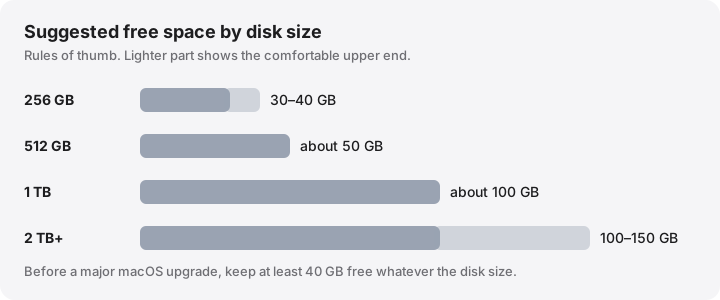
- Set a target for your disk. Aim for roughly 30–40 GB free on a 256 GB Mac, about 50 GB on 512 GB, and around 100 GB on 1 TB or larger.
- Free space with the safest wins first. Empty the Trash, remove old installers and iPhone backups, free local copies of cloud files and clear rebuildable developer caches.
- Watch the trend. Check free space weekly or use a tool that records it, so you notice steady growth before the disk fills.
macOS has no fixed minimum, but it does need working room. A practical rule is to keep roughly 10–15% of the disk free, and not much less than 20–30 GB on any Mac, with 40 GB or more before a major macOS upgrade. Below that, macOS can still run, but updates fail, apps get quit when memory is short, and everyday tasks slow down.
These are rules of thumb, not Apple numbers. Apple does not publish a free-space target. The reasoning below explains where they come from, so you can adjust them to how you use your Mac.
What macOS uses free space for
Free space is not idle. Several parts of macOS borrow it constantly and give it back later.
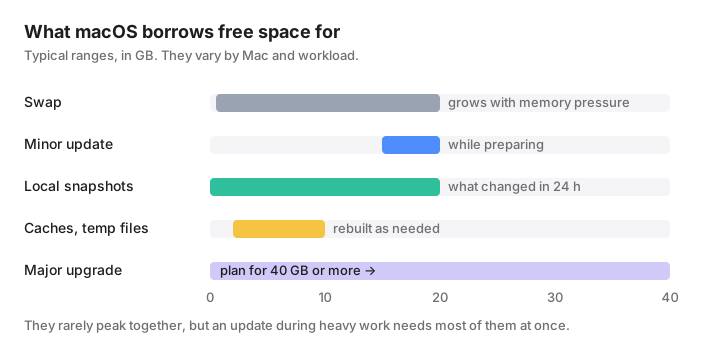
- Swap. When apps need more memory than the Mac has, macOS compresses memory first, then writes some of it to swap files on the VM volume (shown in Activity Monitor as Swap Used). On a busy Mac this is often a few gigabytes; with heavy apps or many browser tabs on 8 GB of memory it can reach 10–20 GB. It shrinks again after a restart. See swap.
- Software updates. A minor update needs around 15–20 GB of working space during preparation, a major upgrade considerably more. See how much space a macOS update needs.
- Time Machine local snapshots. If you use Time Machine, macOS keeps hourly snapshots on your startup disk for about 24 hours. They hold on to files you deleted or changed since. macOS removes them when space runs low. See local snapshots.
- Caches and temporary files. Apps and macOS cache downloads, thumbnails and compiled code. They are rebuildable but return quickly.
- Spotlight. The search index grows with your files and is often rebuilt after a major upgrade, which temporarily takes extra space.
- New system assets. On macOS 27, Apple says Apple Intelligence needs up to 8 GB, or up to 14 GB on some Macs, and models arrive after you upgrade.
Add your own needs on top: exporting a video, unzipping an archive or downloading a large file all need space for the original and the result at the same time.
How APFS behaves when the disk is nearly full
APFS shares free space between all the volumes in a container, so the System, Data, VM, Preboot and Recovery volumes all draw from the same pool. When it shrinks, macOS starts to reclaim what it can on its own: it removes Time Machine local snapshots, clears some caches and evicts files from iCloud Drive if Optimize Mac Storage is on. That reclaimable space is what Apple calls purgeable.
Reclaiming takes time and only goes so far. If memory pressure rises while the disk is nearly full, macOS cannot grow swap. It may show a warning that your system has run out of application memory and ask you to quit apps, and on recent versions it can quit some apps on its own. Writing to a nearly full SSD can also slow down, because the drive has fewer free blocks to work with.
Howard Oakley’s analysis, How much free space does an APFS disk need?, budgets around 40 GB at peak for the system volumes during an update, plus room for swap, snapshots and caches. He suggests about 100 GB free on a startup disk if you can, and keeps more himself. Most people can manage with less, which is where the rules below come from.
Symptoms of low free space
- Software Update says there is not enough storage, or an upgrade stalls.
- A notification that your disk is almost full.
- Apps quit unexpectedly, or the “run out of application memory” window appears.
- The Mac is slow when many apps are open, and Activity Monitor shows memory pressure in yellow or red.
- Photos, Mail or iCloud Drive stop syncing; Time Machine backups fail.
- Saving, exporting or downloading fails with a disk-full error.
Practical rules of thumb
The fixed costs (swap, updates, snapshots) are roughly the same on every Mac, so small disks need a larger share free than large ones.
| Disk size | Aim to keep free | Why |
|---|---|---|
| 256 GB | 30–40 GB (about 12–15%) | Covers swap, a minor update and snapshots |
| 512 GB | about 50 GB (10%) | Adds room for larger caches and exports |
| 1 TB | about 100 GB (10%) | Comfortable for video, VMs and Xcode |
| 2 TB or more | 100–150 GB | The fixed costs stop growing |
| Before a major upgrade | 40 GB or more | The new system is staged alongside the old one |
If you work with video, virtual machines, Docker or Xcode, add the size of your largest working file or build on top.
Living with a 256 GB Mac
On a Mac running macOS 27.0.1 that we checked, the sealed System volume took 13.7 GB, Preboot 10.9 GB and Recovery 1.5 GB, before swap, Apple Intelligence models, caches or a single app of your own. Exact figures vary, but expect the system and its supporting volumes to use a few tens of gigabytes. That leaves roughly 200 GB for apps and files, of which you want to keep 30–40 GB free.
What helps most on a small disk:
- Turn on Optimize Mac Storage for iCloud Drive and Photos, so originals live in iCloud. See Remove Download vs Delete.
- Keep large media libraries and old projects on an external drive.
- Delete old iPhone and iPad backups, and old
Install macOSapps. - If you develop software, clear Xcode’s DerivedData and old simulators regularly; see Xcode storage.
- Restart occasionally: it releases swap and temporary files.
How to monitor free space
- System Settings › General › Storage shows categories and recommendations.
- Disk Utility shows the volume’s free space without counting purgeable space as available.
- Activity Monitor › Memory shows memory pressure and Swap Used (Apple’s guide).
- In Terminal, these commands only read:
df -h /                  # free space on the startup disk
sysctl vm.swapusage      # how much swap is in use
tmutil listlocalsnapshots /   # Time Machine local snapshots
Myths to ignore
- “Free up RAM” apps do not free disk space. macOS uses idle memory as cache deliberately; purging it just makes apps reload data.
- “You need to enable TRIM.” macOS turns TRIM on for Apple’s built-in SSDs automatically.
trimforceexists only for some third-party SSDs. - “Defragment your Mac.” APFS on an SSD does not need it.
- “Delete the swap files.” They live on the protected VM volume, macOS manages them, and they shrink after a restart. Trying to delete them by hand is neither safe nor useful.
How MoreRoom helps
MoreRoom’s free Storage Weather records your free space over 30 days, forecasts when the disk would fill at the current rate and shows what grew this week, and optional low-space alerts warn you before you hit your limit. Its System Data, explained view breaks down swap, the sleep image, snapshots, Preboot and Recovery, and what macOS will purge on its own. Rules mark what is “Safe to remove” or “Review first”; everything goes to the Trash first, with Undo. Pro’s Goal mode picks the safest items to reach a target such as 40 GB. MoreRoom does not free RAM, speed up the Mac or delete snapshots.
Frequently asked questions
How much free space should I keep on my Mac?
Roughly 10–15% of the disk, and not much less than 20–30 GB on any Mac. Keep 40 GB or more before a major macOS upgrade. These are rules of thumb, not Apple figures.
Does a full disk slow down a Mac?
It can. When memory runs short macOS writes swap to the disk, and with little space left it struggles to do that, so apps slow down or are quit. Updates, backups and indexing also stall.
Do I need to run TRIM on my Mac’s SSD?
No. macOS enables TRIM automatically on Apple’s built-in SSDs. The trimforce command is only for some third-party SSDs.
Do free-RAM apps help with storage or speed?
No. macOS uses spare memory for caching on purpose and frees it when needed. Purging memory does not free disk space and usually makes things slower for a while.
Is 256 GB enough for a Mac?
For browsing, office work and cloud-based files, yes, with some care. The system takes a few tens of gigabytes, so photo libraries, video, games and development work fill 256 GB quickly.