In short
- System Data is not a folder. It is whatever Storage settings cannot place in a named category, so it is calculated as a remainder.
- It typically holds caches, logs, local Time Machine snapshots, swap, the Preboot and Recovery volumes, the Spotlight index and app data that Storage does not recognise.
- A large System Data figure usually comes from a few big items, such as snapshots, iPhone backups or a Docker or virtual machine disk.
- You reduce it by finding those items and removing them with the right tool, not by deleting system folders.
- Much of System Data is managed by macOS and shrinks on its own after a restart or within about 24 hours.
How to reduce System Data on a Mac
- Clear the categories Storage settings can explain. Open System Settings › General › Storage and use the Info buttons next to Applications, Documents, iOS Files and other categories to remove items you no longer need.
- Restart your Mac. A restart releases swap files and lets macOS clear temporary files, which often reduces System Data by several gigabytes.
- Check for local snapshots. Run tmutil listlocalsnapshots / in Terminal. Time Machine snapshots expire after 24 hours and macOS removes them when space is needed.
- Measure your Library folders. Run du -hd 1 ~/Library | sort -h in Terminal to find large folders such as Caches, Application Support, Containers or Developer.
- Remove large items with the right tool. Delete old iPhone backups in Finder’s Manage Backups, prune Docker from Docker Desktop, and clear app caches only after quitting the app.
- Leave system areas alone. Do not delete files in /System, the Preboot, Recovery or VM volumes, or the Spotlight index folder. macOS manages them.
System Data is the part of your Mac’s storage that Storage settings cannot put into a named category. It is calculated as a remainder: macOS adds up Applications, Documents, Photos, macOS and the other categories it recognises, then labels whatever is left as System Data. On a typical Mac it holds caches, logs, local Time Machine snapshots, swap files, hidden system volumes and app data. You reduce it by finding the few large items behind the number, not by “clearing System Data” as a whole.
System Data was called “Other” in older versions of macOS. As of October 2026 the name is the same on macOS 27 Golden Gate, macOS 26 Tahoe, macOS 15 Sequoia and macOS 14 Sonoma.
Why does macOS put so much into System Data?
Apple’s Storage settings guide describes System Data as files that “don’t fall into the categories listed here.” It adds that macOS manages the contents and that the size varies with the current state of your Mac. Unlike Applications or Documents, System Data has no Info button, so you cannot browse it from Storage settings.
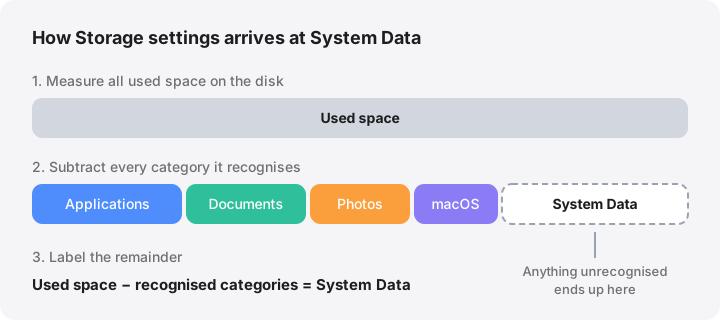
Because it is a remainder, System Data also absorbs anything Storage settings misses. A Docker disk image, a folder of virtual machines or an iPhone backup that is not picked up by the iOS Files category all land there. That is why two Macs with similar files can show very different System Data figures. See the glossary entry for System Data for a short definition.
What is actually inside System Data?
The exact mix differs from Mac to Mac, but these are the usual contents. Sizes are typical ranges, not rules.
| What | Where it lives | Can you reduce it? |
|---|---|---|
| Local Time Machine snapshots | Inside the Data volume, not visible in Finder | Usually leave them; they expire after 24 hours |
| App caches | ~/Library/Caches, plus per-app folders in ~/Library/Containers |
Yes, with the app closed; they grow back |
| Logs and crash reports | ~/Library/Logs, /Library/Logs, /private/var/db/diagnostics |
Your own logs, yes; the system log is managed by macOS |
| Swap and sleep image | The hidden VM volume, /System/Volumes/VM |
No; a restart shrinks swap |
| Preboot and Recovery volumes | Separate hidden APFS volumes used to start up and repair the Mac | No |
| Spotlight index | /System/Volumes/Data/.Spotlight-V100 |
No; rebuild only if it is clearly abnormal |
| Downloaded system assets: voices, dictation and Apple Intelligence models, a pending macOS update | /System/Library/AssetsV2 |
Managed by macOS |
| App support data | ~/Library/Application Support, ~/Library/Containers, ~/Library/Group Containers |
Review inside each app |
| iPhone and iPad backups, IPSW firmware files | ~/Library/Application Support/MobileSync/Backup, ~/Library/iTunes |
Yes, through Finder |
| Docker and virtual machine disks | For example ~/Library/Containers/com.docker.docker/Data/vms |
Yes, from inside the app |
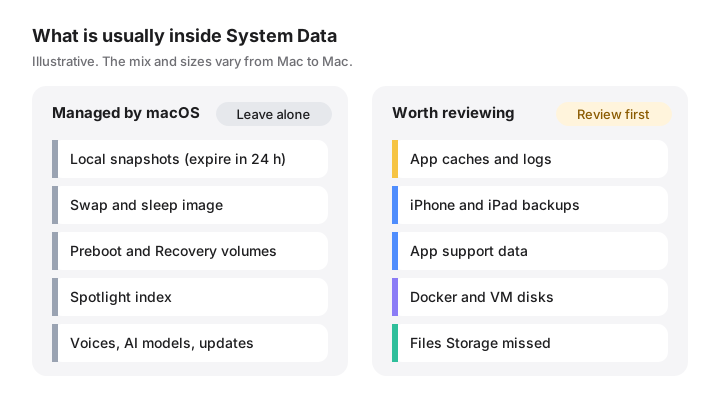
Two version notes. Apple says the Apple Intelligence features in the 27 releases need up to 14 GB on Macs with M3 or later and at least 12 GB of memory, and up to 8 GB on other supported Macs (Apple Support). Recent versions of Storage settings attribute some of that to macOS or list it separately; on others it may surface in System Data. Also, iPhone backups normally appear under iOS Files, but only when Storage settings recognises them.
How to investigate System Data yourself
Start with what Storage settings can explain
Open System Settings › General › Storage and wait for the bar to finish calculating. Click the Info button (ⓘ) next to Applications, Documents, iOS Files, Developer and Trash, and remove what you no longer need. Shrinking these categories does not shrink System Data, but it makes the remaining number easier to read.
Check for local snapshots
If Time Machine is set up, macOS keeps hourly local snapshots for 24 hours. List them in Terminal:
tmutil listlocalsnapshots /
Each line such as com.apple.TimeMachine.2026-10-17-093012.local is one snapshot. Listing them changes nothing. Apple explains how they work in About Time Machine local snapshots, and our guide to Time Machine local snapshots covers when deleting them makes sense.
Measure the big folders
du reports how much disk space each folder uses. This lists the largest folders in your Library, smallest first:
du -hd 1 ~/Library 2>/dev/null | sort -h | tail -15
It only reads, so it is safe to run. Terminal needs Full Disk Access to see some protected folders: turn it on in System Settings › Privacy & Security › Full Disk Access. Two caveats: du counts APFS clones once per copy, so totals can be higher than the space really used, and it reports binary units (1 GB = 1,024 MB), while Finder uses decimal units.
To look one level deeper, run the same command on the largest result, for example du -hd 1 ~/Library/Containers.
Check swap
sysctl vm.swapusage
This shows how much swap macOS is using right now. Swap lives in the VM volume and is released when you restart. Heavy swap use is normal when memory is tight; it is not something to delete.
What is safe to reduce, and what is not
Generally safe, with the right tool:
- App caches in
~/Library/Caches. Quit the app first. Caches come back as you use the app, so the gain is temporary. See App caches. - Your own logs in
~/Library/Logs, and old crash reports in/Library/Logs/DiagnosticReports. - Old iPhone and iPad backups. Connect the device or open Finder, select the device, click Manage Backups, then delete backups you do not need. Apple describes this in Locate and manage backups. Keep at least one recent backup of each device you still use.
- IPSW firmware files in
~/Library/iTunes/iPhone Software Updates, which Finder downloads to restore or update a device and can download again. - Docker and virtual machine disks. Remove images, containers and old VMs from inside Docker Desktop, Parallels, UTM or the tool you use. Deleting the disk file directly removes everything inside it. Our guide to Docker Desktop’s disk image explains the safe steps.
Leave to macOS:
- Anything in
/System, and the Preboot, Recovery and VM volumes. - The Spotlight index. If it is clearly abnormal,
sudo mdutil -E /erases and rebuilds it, which takes time and uses the processor while it runs. - Downloaded system assets in
/System/Library/AssetsV2, including a pending macOS update. - The temporary folders in
/private/var/folders. Apps keep files open there, and macOS cleans them itself.
Avoid rm -rf on anything under /System, /private or /Library unless you know exactly what the folder is for. If you are unsure, the folder directory explains common locations and whether they are safe to remove.
Two built-in ways to shrink System Data
- Restart. This releases swap and lets macOS remove temporary files.
- Start up in safe mode once. Apple notes that safe mode clears some system caches, which can help when you are a few gigabytes short, for example before an update (Free up storage space on Mac). Restart normally afterwards.
Apple’s optimise storage guide also says macOS clears caches, logs, interrupted downloads and staged updates that are safe to delete when space is needed. Much of System Data is designed to shrink on its own.
Why System Data comes back
Caches, logs, swap and snapshots are working data. They grow, get trimmed and grow again. A System Data figure that stays roughly stable is normal. What deserves attention is steady growth week after week, which usually points to one item: a virtual disk that keeps expanding, an app writing large logs, or backups piling up. If deleting things does not seem to free space at all, read why deleted files don’t free space, and for the difference between Finder and Terminal figures see purgeable space explained.
How MoreRoom helps
MoreRoom’s free version includes System Data, explained: it breaks the figure down into local snapshots, swap and sleep image, Preboot and Recovery, and the folders behind the rest, and shows what macOS will purge on its own. It also explains why Finder and df disagree and labels admin-only folders it counts. Its rules recognise items such as iPhone backups, IPSW files and Docker disks, with “Safe to remove” or “Review first” badges, and anything you remove goes to the Trash first, with Undo. Pro adds Collector, to gather safe items in one go. MoreRoom does not delete snapshots, clean system (root) caches or touch the Preboot, Recovery or VM volumes; for snapshots, use tmutil or Disk Utility as described above.
Frequently asked questions
Why is System Data so large on my Mac?
System Data is the remainder after Storage settings counts the categories it recognises, so anything it cannot classify ends up there. Large values usually come from local Time Machine snapshots, iPhone backups, virtual machine or Docker disks, or big app support folders.
Can I delete System Data directly?
No. Storage settings shows System Data only as a total and has no button to delete it. You reduce it by finding the actual folders or snapshots behind it and removing them with Finder, the app that created them or the right command.
Is it safe to clear caches to reduce System Data?
Caches in your user Library are generally safe to remove once the app that uses them is closed, because apps rebuild them. Expect them to grow back, and avoid deleting system caches outside your home folder.
Does restarting a Mac reduce System Data?
Often, yes. A restart releases swap files and temporary data, which can free a few gigabytes. It does not remove backups, app data or virtual disks.
What used to be called “Other” storage on Mac?
Older versions of macOS used the label Other for roughly the same remainder. Since macOS Monterey it has been called System Data.