In short
- Deleting a file frees space only when nothing else still references its data: not the Trash, not an open app, not a snapshot and not a clone.
- The most common cause is simply that the Trash, or a Trash on another drive, has not been emptied.
- A file deleted while an app still has it open keeps using space until that app closes it; lsof +L1 lists such files.
- Local Time Machine snapshots can keep deleted data for up to 24 hours, and deleting one copy of an APFS clone frees almost nothing.
- Storage settings can lag behind, so check Finder’s Get Info or df -h / for a current figure.
How to get space back after deleting files on a Mac
- Empty the Trash. Open the Trash and choose Finder › Empty Trash, with any external drives still connected so their Trash is emptied too.
- Find deleted files still held open. Run lsof +L1 in Terminal, or sudo lsof +L1 to include all users. Quit the app listed next to large files, or restart your Mac.
- Check for local snapshots. Run tmutil listlocalsnapshots /. Time Machine snapshots expire after 24 hours and macOS removes them sooner if space is needed.
- Check for clones and other copies. If you deleted a copy made in Finder on the same drive, the original still holds the shared data. Space returns only when every copy is gone.
- Check app-level bins. Empty Recently Deleted in Photos and Notes, Deleted Items in Mail and the trash or bin inside any other app you deleted from.
- Re-measure with a current figure. Use Finder’s Get Info on your startup disk or run df -h / in Terminal, since Storage settings can take time to recalculate.
When you delete a file on a Mac, its space is freed only when nothing else still references the data. The usual culprits are, in order: the file is still in the Trash, an app still has it open, a local Time Machine snapshot still holds it, or it was an APFS clone sharing its data with another copy. On top of that, Storage settings can take a while to show the change. Work through the checks below in order; most cases are solved by the first two.
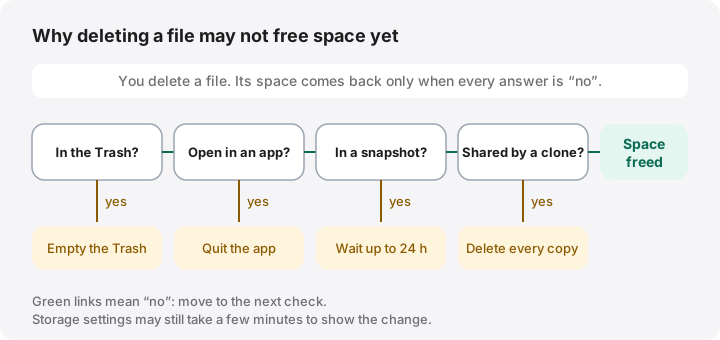
1. The file is still in the Trash
Moving a file to the Trash does not free space. It only moves the file to a hidden folder on the same drive. Space comes back when you choose Finder › Empty Trash.
Every drive keeps its own Trash:
- Your startup disk uses
~/.Trashin your home folder. - External and secondary drives use a hidden
.Trashesfolder at their root, with one subfolder per user.
Finder shows them all as one Trash and empties all connected drives together. If you deleted files on an external drive and then unplugged it, its Trash was not emptied; reconnect it and empty the Trash again. If Empty Trash Automatically is on, Finder erases items only after they have been in the Trash for more than 30 days (Apple Support).
Apps can have their own bin too. Photos and Notes keep deleted items in Recently Deleted, and Mail keeps them in Deleted Items until you erase them.
2. An app still has the file open
On macOS, as on other Unix systems, a deleted file disappears from Finder immediately, but its data stays on disk as long as any app has it open. This is sometimes called ghost space. It is common with log files, video and audio projects, virtual machines and databases.
To list deleted files that are still open, run:
lsof +L1
+L1 asks lsof for open files with a link count below one, meaning files that no longer have a name in any folder. The COMMAND and PID columns name the app, and SIZE/OFF gives the size in bytes. Without sudo you see only your own apps; sudo lsof +L1 includes system processes and asks for your password. The command only reads, so it is safe.
To release the space, quit the app shown, or restart the Mac if it is a background process. Small entries from system services are normal and not worth chasing; look for large sizes.
3. A local snapshot still holds the data
If Time Machine is set up, macOS takes a local snapshot about every hour and keeps it for 24 hours (Apple Support). A snapshot preserves the disk as it was, so a file you delete after the snapshot was taken stays inside the snapshot until it expires. List them with:
tmutil listlocalsnapshots /
Usually you can simply wait. Apple says your Mac counts snapshot space as available and removes snapshots when space is needed for downloads, copies or installs. If you need the space immediately, our guide to Time Machine local snapshots explains how to thin or delete them and what you give up. Other backup apps, such as Carbon Copy Cloner, can keep their own snapshots with their own retention rules.
4. Purgeable space and different ways of counting
Finder and Storage settings report available space, which includes purgeable space: data such as snapshots and some caches that macOS will remove on its own. Terminal’s df reports only space that is free right now. If you delete a file that is still held by a snapshot, Finder may show more available space while df shows no change. Compare like with like: check Finder’s Get Info before and after, or df -h / before and after, not one against the other.
5. The file was an APFS clone
On APFS, copying a file in Finder on the same volume, or duplicating it with File › Duplicate, normally creates a clone. The clone and the original point to the same data blocks; only parts that change later take extra space. Apple describes this in About Apple File System.
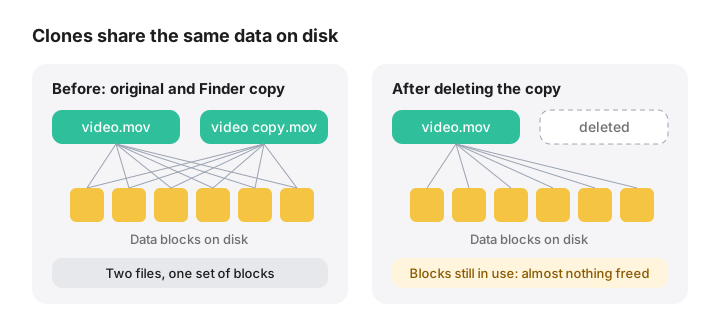
So if you delete one of two clones, you free only the blocks that differed. Space comes back when the last copy is deleted. Tools such as du count each clone in full, which is why folder totals can add up to more than the disk actually uses. Our guide to duplicate files and APFS clones explains how to tell them apart.
6. Storage settings has not caught up
System Settings › General › Storage calculates its figures in the background and can lag behind. For a current figure, use one of these:
- In Finder, select your startup disk and choose File › Get Info. It shows Available, including purgeable space.
- In Terminal, run
df -h /. TheAvailcolumn shows free space now, without purgeable space.
Closing and reopening Storage settings, or waiting a few minutes, usually brings it in line.
7. iCloud and Optimize Mac Storage
With iCloud Drive and Optimize Mac Storage on, some files exist only in iCloud, with no local copy. Deleting those frees iCloud storage but nothing on your Mac. The reverse also catches people out: deleting a synced file on your Mac deletes it from iCloud and your other devices too.
If you want to free local space while keeping the file, Control-click it and choose Remove Download instead (Apple Support). See Remove Download versus delete for details.
Quick reference
| Symptom | Likely cause | Fix |
|---|---|---|
| Nothing changed at all | Trash not emptied | Finder › Empty Trash, with drives connected |
| Large file gone, space not back | App still has it open | lsof +L1, then quit the app or restart |
| Space returns a day later | Local snapshot | Wait, or thin snapshots |
| Deleted a “duplicate”, no change | APFS clone | Space returns when every copy is gone |
Finder and df disagree |
Purgeable space | Compare the same tool before and after |
| Storage settings looks stale | Background recalculation | Use Get Info or df -h / |
How MoreRoom helps
MoreRoom’s free version includes Ghost space: it finds space held by deleted files that an app still keeps open, shows which app holds it, and gets it back by quitting that app. Its System Data view shows local snapshots and what macOS will purge on its own, and explains why Finder and df disagree. Anything you remove in MoreRoom goes to the Trash first, with Undo. MoreRoom does not delete snapshots or find duplicate files; use tmutil or Disk Utility for snapshots.
Frequently asked questions
Why is my Mac storage still full after deleting files?
The files are usually still in the Trash, held open by an app, kept by a local Time Machine snapshot, or shared with another copy through an APFS clone. Storage settings may also not have recalculated yet.
How long does it take for deleted files to free up space on a Mac?
Once the Trash is emptied and no app has the file open, space is freed straight away unless a local snapshot still references it. Time Machine snapshots expire within 24 hours, or sooner if macOS needs the space.
Does restarting a Mac free space from deleted files?
It frees space held by files that apps still had open, and releases swap. It does not empty the Trash or remove local snapshots by itself.
Why didn’t deleting a duplicate free any space?
On APFS, a copy made in Finder on the same volume is usually a clone that shares its data with the original. Deleting one of the two frees only the parts that had changed.
Do I need to empty the Trash on an external drive separately?
No, as long as the drive is connected when you empty the Trash. Each drive keeps its own hidden Trash folder, and Finder empties all connected ones together.