In short
- Remove Download frees the local copy only. The file keeps its name and place in Finder, stays in iCloud, and downloads again when you open it.
- Delete removes the file from iCloud Drive on every device. On iCloud.com you can recover it from Recently Deleted for 30 days.
- Keep Downloaded, added in macOS Sequoia, pins files or folders so Optimize Mac Storage never removes them.
- Dropbox, OneDrive and Google Drive offer the same idea as “online-only”, “Free up space” and “Available offline”, all built on Apple’s File Provider.
- A file whose download you removed is not on your Mac, so Time Machine cannot back it up locally.
How to free space with Remove Download without deleting anything
- Check the file has finished uploading. In Finder, use List view and choose View › Show View Options › iCloud Status. Skip anything marked Waiting to Upload.
- Control-click the file or folder. In iCloud Drive, or in Desktop and Documents if they sync with iCloud, Control-click the item you want to keep only in the cloud.
- Choose Remove Download. The item stays in the same place in Finder with a cloud icon next to it, and its local space is released.
- Pin what you need offline. Control-click files or folders you always want on your Mac and choose Keep Downloaded. Optimize Mac Storage will leave them alone.
- Use the provider’s option for other clouds. For Dropbox choose Make online-only, for OneDrive Free up space, and for Google Drive set Offline access to Online only.
Remove Download frees the space a file uses on your Mac and leaves it in iCloud: its name, icon and place in Finder stay, and it downloads again when you open it. Delete (Move to Trash) removes the file from iCloud Drive on every device signed in to your Apple Account. If you only want space back, Remove Download is almost always the one you want.
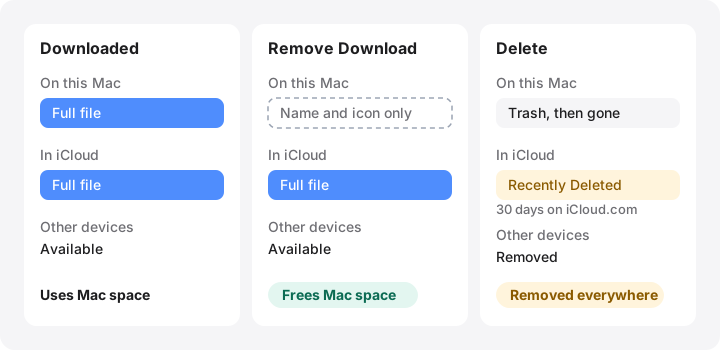
What “Remove Download” does
When you Control-click an item in iCloud Drive and choose Remove Download, macOS evicts its data. What remains is a dataless file: the name, size, dates and icon are still there, Spotlight can usually still find it, but the contents live only in iCloud. Open it and macOS downloads it again in the background.
A few consequences are worth knowing:
- You need a connection to open it. On a plane, an evicted file is out of reach.
- Time Machine cannot back it up from this Mac. The data is not here. Your copy lives in iCloud, so make sure you are comfortable with that for important work.
- It only works for files already uploaded. Anything marked Waiting to Upload still exists only on your Mac.
What “Delete” does
Moving an iCloud Drive item to the Trash deletes it from iCloud Drive, and therefore from your iPhone, iPad and other Macs too. On the Mac it sits in the Trash until you empty it. After that, Apple keeps it for a while: on iCloud.com you can open Recently Deleted and recover files deleted in the last 30 days. After 30 days, or if you delete them from Recently Deleted, they are gone for good.
Deleting is what eventually frees space in your iCloud storage plan; Remove Download does not change it. Pick the action that matches the problem: Mac full → Remove Download; iCloud plan full → delete what you no longer need.
Optimize Mac Storage
In System Settings › [your name] › iCloud › Drive (called iCloud Drive in some older versions) you will find Optimize Mac Storage. With it on, Apple says your Mac “can automatically store documents in iCloud when more space is needed”: older files you have not opened recently are evicted automatically when the disk gets tight. With it off, iCloud Drive aims to keep a full local copy of everything, and Remove Download may not be offered.
Optimize Mac Storage works gradually and only under pressure, so it will not instantly free 50 GB. Remove Download is the immediate, manual version of the same thing.
Desktop and Documents in iCloud
In the same Drive settings, Desktop & Documents Folders moves those two folders into iCloud Drive. They still appear in their usual places in Finder, but every file on your Desktop and in Documents is now an iCloud file: Remove Download works on it, Optimize Mac Storage can evict it, and deleting it deletes it everywhere.
If you turn the option off, Apple’s Desktop and Documents guide explains that your files stay in iCloud Drive and new, empty Desktop and Documents folders are created in your home folder. Move files back yourself, and check you have the space first.
Keeping files on your Mac: Keep Downloaded
Since macOS Sequoia, Finder offers Keep Downloaded. Control-click a file or folder in iCloud Drive and choose it, and that item stays downloaded even when Optimize Mac Storage needs space. Choose it again to undo. Apple describes it in Work with folders and files in iCloud Drive. On macOS Sonoma and earlier there is no pin, so the only way to guarantee a local copy is to turn Optimize Mac Storage off.
Seeing what is local: Finder status icons
In a Finder window, choose List view, then View › Show View Options and tick iCloud Status. Apple lists the icons in Check your iCloud Drive file and folder status:
| Icon or status | Meaning | Uses space on this Mac? |
|---|---|---|
| No icon | Downloaded and up to date | Yes |
| Cloud (In iCloud) | Stored only in iCloud | Almost none |
| Keep Downloaded | Pinned, never evicted automatically | Yes |
| Waiting to Upload | Not in iCloud yet | Yes, and it is the only copy |
| Pie chart | Uploading or downloading | Changing |
| Ineligible | Can’t be stored in iCloud (for example over 50 GB) | Yes |
Finder’s size column often still shows an evicted file’s full size, while Get Info shows how little it takes on disk. That is why folder sizes in Finder and the free space on your disk do not always add up.
The same idea in Dropbox, OneDrive and Google Drive
On current macOS, iCloud Drive and the major third-party services all run on Apple’s File Provider system. Their folders live in ~/Library/CloudStorage (iCloud Drive itself is in ~/Library/Mobile Documents), and they all support files that are visible in Finder but stored only online.
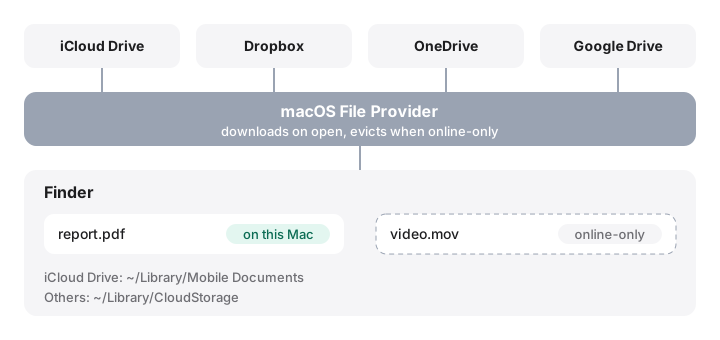
| Service | Free space (keep in cloud) | Keep on this Mac | Official help |
|---|---|---|---|
| iCloud Drive | Remove Download | Keep Downloaded | Apple |
| Dropbox | Make online-only | Make available offline | Dropbox |
| OneDrive | Free up space (Files On-Demand) | Always keep on this device | Microsoft |
| Google Drive | Offline access › Online only (Stream mode) | Offline access › Available offline |
Details differ slightly. Dropbox may switch files that are not marked as available offline to online-only automatically when your disk is low. Google Drive’s Mirror mode keeps a full local copy of My Drive by design; only Stream mode keeps files online-only. In every case, deleting a file in the folder deletes it from the cloud too, and each service has its own deleted-files recovery period.
Never clean up by deleting things inside ~/Library/CloudStorage or ~/Library/Mobile Documents in Terminal. Those are the live sync folders, not caches.
How MoreRoom helps
MoreRoom’s scan shows how much space the local copies of your cloud drives take, so you can see whether iCloud Drive, Dropbox, OneDrive or Google Drive is the one filling your Mac. Its free Keep in the Cloud feature does the Remove Download step for you, one folder at a time, across iCloud Drive, Dropbox, OneDrive and Google Drive. It never deletes anything from the cloud and skips files that have not finished uploading. Pro adds keeping whole cloud drives in the cloud in one go. MoreRoom does not change your iCloud settings, pin files or manage your iCloud storage plan; use Finder and System Settings for those.
Frequently asked questions
Does Remove Download delete the file from iCloud?
No. It only removes the copy stored on this Mac. The file stays in iCloud Drive and on your other devices, and downloads again when you open it.
Where do deleted iCloud Drive files go?
On the Mac they go to the Trash first. Once removed from iCloud Drive, they can be restored from Recently Deleted on iCloud.com for up to 30 days, after which they are gone.
How do I see which iCloud files are actually on my Mac?
Switch a Finder window to List view and turn on the iCloud Status column. A cloud icon means the file is only in iCloud; no icon means it is downloaded and up to date.
Why is Remove Download missing from the menu?
It only appears for items that are downloaded and already uploaded. With Optimize Mac Storage off, iCloud Drive aims to keep everything local and some macOS versions don’t offer it, so try turning Optimize Mac Storage on.
Is it safe to delete the folders in ~/Library/Mobile Documents or ~/Library/CloudStorage?
No. Those folders are your cloud drives. Deleting files there deletes them from the cloud and every device. Use Remove Download or the provider’s online-only option instead.